How-to Guides
Practical step-by-step guides for the most common admin tasks.
Roles
The guides are aimed at hub admins. Individual steps (e.g. reviewing sources, re-routing content) can also be carried out by instance moderators — the details are on each area's page.
Route content from a source into a space
Articles from a specific RSS source or geographic area automatically appear in a specific space.
Before you start
- You have access to the Governance hub (shield icon in the top bar or Profile → Administration).
- The target space already exists (otherwise: Set up a new space from scratch).
- You know the feed address (or the website) of the source.
- You have settled on an area spelling (lowercase, hyphens — see Best Practices).
Steps
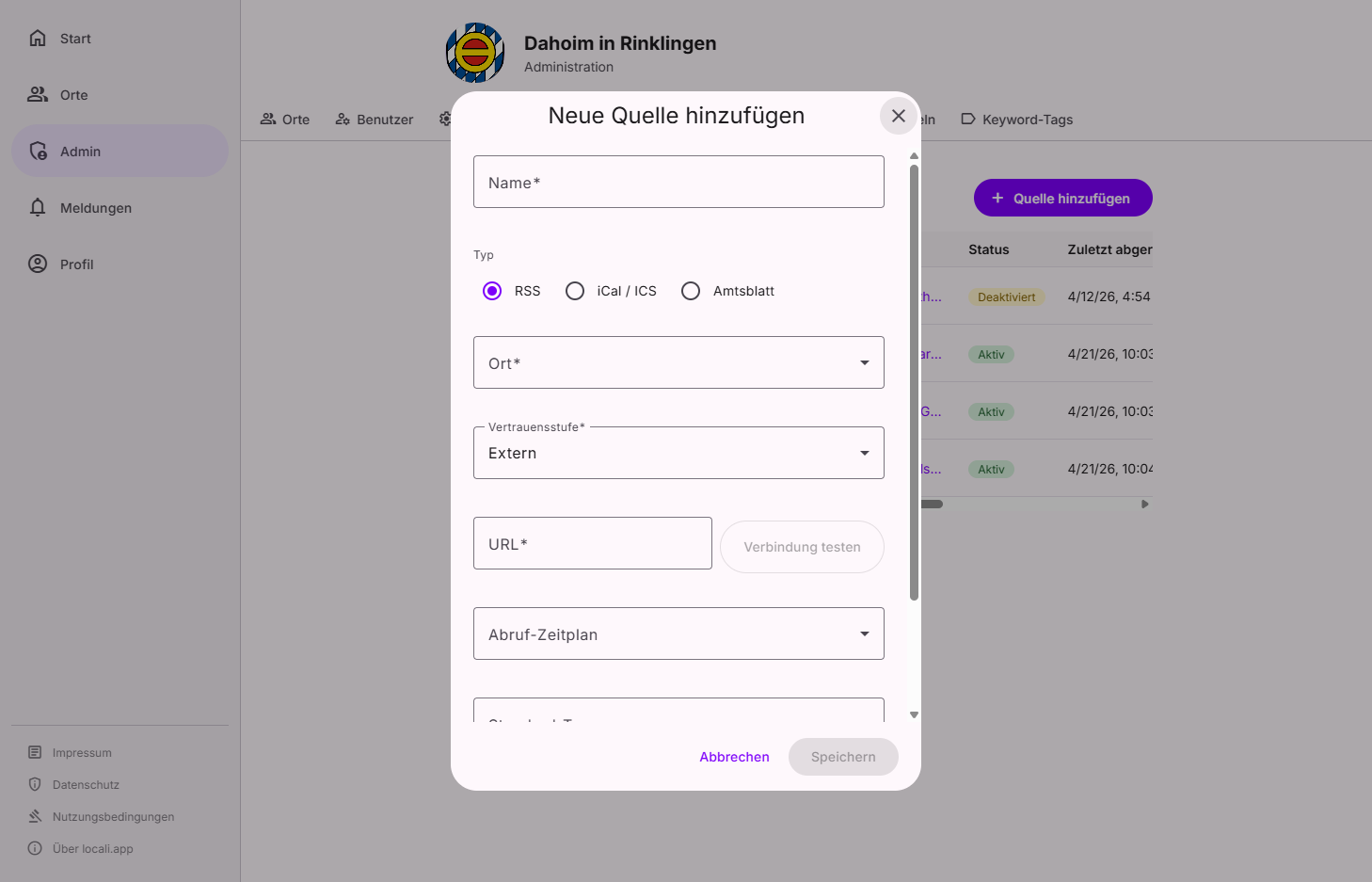
1. Add a source
Navigate to Governance → Sources and click "Add source". The three-step wizard walks you through Address → Check → Details; in the Details step you enter:
| Field | Recommendation |
|---|---|
| Name | Descriptive name, e.g. "Municipal Office Weilstadt" |
| Trust level | Official for official sources |
| Default areas | Locality or region, e.g. weilstadt (lowercase) |
| Default tags | Optional tags for pre-sorting |
Consistent area names
Always use the same spelling for the area (lowercase, no spaces). The exact same value will be used as the condition value in the routing rule.
2. Create a routing rule
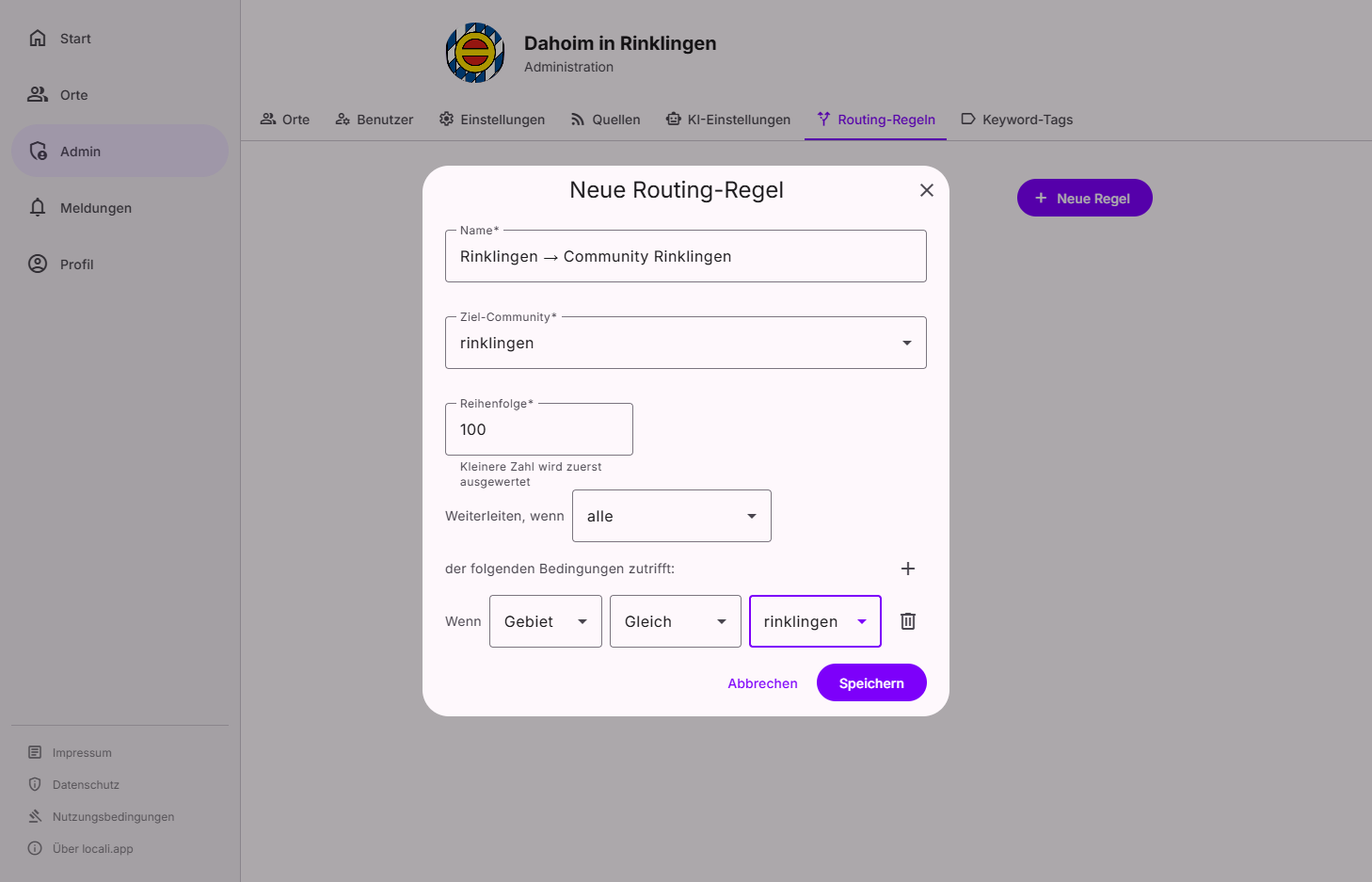
Navigate to Governance → Routing (Rules tab) and click "New rule".
Fill in the form as follows:
| Field | Value |
|---|---|
| Name | e.g. Weilstadt → Space Weilstadt |
| Target space | Select the desired space from the list |
| Order | 100 |
Add a condition:
- Field:
Area - Operator:
Is - Value:
weilstadt(exactly as entered in the source)
How the condition works
When an article is processed, locali evaluates all active rules. If the article's area matches weilstadt, the rule adds the selected target space — on top of whatever the spaces' own areas and tags already route (see the four routing phases). If the target space has the area itself, the content reaches it even without a rule.
3. Verify the result
- Open the target space and check Posts to see if new articles appear.
- The Log tab (Governance → Routing) shows, for every item, which phase or rule routed it where.
- New articles are processed on the next feed refresh.
Troubleshooting
| Problem | Solution |
|---|---|
| No content appears in the space. | Check that the source is enabled (⋮ menu on the source card) and wait for the next scheduled poll (the source's polling schedule, default: Monday 06:00 UTC). |
| The rule does not take effect. | The area spelling must be identical in the source and the rule (lowercase). The Log tab shows how the content was actually routed. |
| The content appears in multiple spaces. | That is intended: routing is additive — all matching phases and rules take effect together. |
Set up a new space from scratch
A new locality or interest group gets its own space with automatic content supply.
Before you start
- You have access to the Governance hub as a hub admin.
- Name and URL slug are decided — the slug cannot be changed after creation.
- The feed addresses of the relevant sources are at hand.
The flow at a glance:
Create space → Set areas → Add sources → Verify routing
Steps
1. Create the space
Navigate to Governance → Spaces and click "+ Create space". The three-step wizard walks you through Identity (name, description), Address (URL slug), and Access (join mode Open, Request, or Invite).
2. Set up the space: logo and areas
Open the space and switch on Manage mode in the header.
- Logo and welcome text are maintained in the Settings tab, Identity section (see Space settings).
- The space's areas are entered in the Routing sub-area (e.g.
weilstadt) — they determine which content from external sources automatically lands in this space.
3. Add sources
Add all relevant sources under Governance → Sources and set the default area to exactly the same value as in the space (see Sources).
4. Verify routing and add rules if needed
If the areas match, the area phase already routes content into the space without any extra rule. You only need routing rules when content should flow into this space additionally based on other criteria (source, item type, tag, …) — then create them as described in the guide above.
Troubleshooting
| Problem | Solution |
|---|---|
| The desired slug is already taken. | The wizard checks availability live — choose a different spelling. The slug cannot be changed later. |
| The space does not appear in the public overview. | Spaces with join mode Invite or Managed are not publicly listed — you always see them in Governance → Spaces. |
| No content arrives. | Check that the area is spelled identically in the source and the space, and look at the Log tab (Governance → Routing) to see where content was routed. |
Auto-tag articles with keyword tags
Articles are automatically tagged based on keywords; tags can then be used for routing or filtering.
Before you start
- You have access to the Governance hub.
- You know which terms in the content indicate the topic.
Steps
1. Create a keyword tag
Navigate to Governance → Routing (Vocabulary tab) and click "New tag".
| Field | Description |
|---|---|
| Tag | Unique name, e.g. clubnews |
| Sort order | Rule priority (lower number = higher priority) |
| Keywords | Terms to search for in content, e.g. club, association (press Enter or comma to add) |
Case sensitivity
Keyword matching is case-insensitive. Club and club are treated the same.
2. Use the tag for routing
The tag works in two ways (see Keyword tags):
- Spaces that collect the tag as a keyword/interest receive matching content directly.
- Alternatively, create a routing rule with the condition Tag · Contains ·
clubnewsto add a further target space.
Troubleshooting
| Problem | Solution |
|---|---|
| The tag is not assigned. | Keyword rules take effect when newly ingested content is processed — check the spelling of the keywords and wait for the next source poll. |
| Content still carries the tag after the rule was deleted. | That is intended: tags already assigned remain on existing content. |
Best Practices
Consistent area naming
- Use lowercase without special characters, e.g.
musterstadtinstead ofMusterstadt. - Avoid spaces; use hyphens instead:
bad-schoenborn. - Ensure the area value in the source, the space routing, and the routing rule are identical.
Structuring routing rules
| Order | Use case |
|---|---|
10–50 |
Specific sources (one source → one space) |
51–100 |
Area-based rules (Area X → Space Y) |
101–200 |
General rules (tag contains "news" → General) |
Order is organisation, not precedence
Since routing is additive, no rule displaces another — the order only breaks a tie between rules with the same target space. The banding above mainly serves readability.
Normalising keyword tags
- Tags apply hub-wide; choose generic names rather than source-specific ones.
- Regularly review whether tags are still actively used.
Source trust levels
| Level | Recommendation |
|---|---|
Official |
Official municipalities, authorities, utilities |
Partner |
Known partner organisations |
Community |
Community-maintained sources, e.g. local blogs |
External |
New or unknown external sources |